


How to Perform Hyundai Car Voice Command
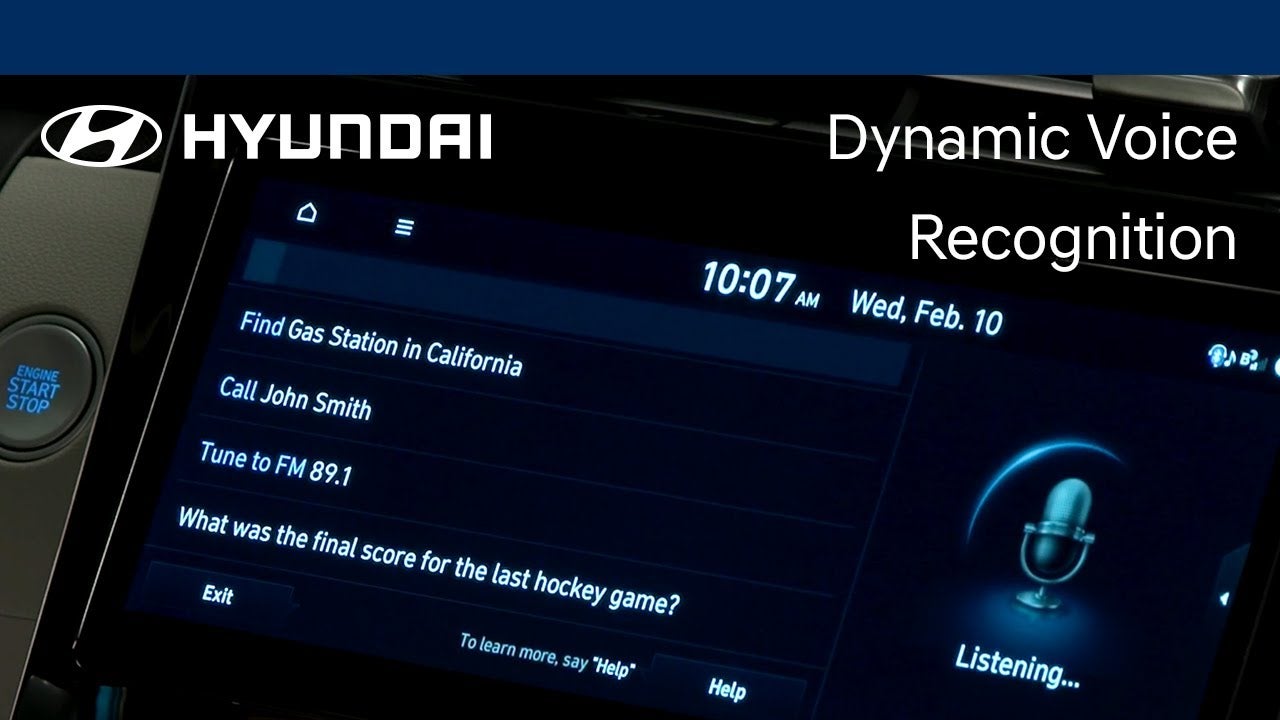
Hyundai cars come equipped with advanced technology that allows drivers to control various features using voice commands. This feature is not only convenient but also helps to promote safe driving. In this article, we'll guide you through the steps of using voice commands to control your Hyundai car.
Setting Up Voice Command
Before you can use voice commands, you need to set up the feature on your Hyundai car. Here are the steps to follow:
Check your car's compatibility: Make sure your Hyundai car is compatible with voice commands. Not all models may have this feature.
Connect your phone: To use voice commands, you need to connect your phone to the car's Bluetooth system.
Enable voice commands: On your phone, go to the Bluetooth settings and enable the voice commands feature.
Test the feature: Once you've enabled voice commands, test the feature by saying "Hey, Hyundai" or "OK, Hyundai" to activate the system.
Using Voice Commands in Your Hyundai Car
Now that you've set up voice commands, you can use them to control various features of your Hyundai car. Here are some examples of how to use voice commands:
Navigation: To set a destination using voice commands, say "Navigate to [destination]." The system will then ask you for confirmation before providing directions.
Phone calls: To make a call using voice commands, say "Call [name of contact]." The system will then ask you for confirmation before dialing the number.
Audio controls: To control the audio system using voice commands, say "Play [song/artist/album]" or "Next/previous song."
Climate control: To adjust the temperature using voice commands, say "Set temperature to [desired temperature]" or "Increase/decrease temperature."
Tips for Using Voice Commands in Your Hyundai Car
Here are some tips to help you get the most out of voice commands in your Hyundai car:
Speak clearly: To ensure that the system understands your commands, speak clearly and enunciate each word.
Use simple commands: Use simple and concise commands to avoid confusion and ensure the system understands your intent.
Use natural language: You don't need to memorize specific commands. Instead, use natural language when giving commands, such as "Turn up the AC" or "Call my boss."
Keep your eyes on the road: Even though voice commands can make operating your Hyundai car more convenient, make sure to keep your eyes on the road while giving commands.
Conclusion
Using voice commands in your Hyundai car is a convenient and safe way to control various features while driving. By following the steps outlined in this article, you can set up voice commands on your Hyundai car and start using them to navigate, make calls, control audio, and adjust climate settings. Remember to speak, use simple commands, use natural language, and keep your eyes on the road while using voice commands.
| Monday | 9:00AM - 7:00PM |
| Tuesday | 9:00AM - 7:00PM |
| Wednesday | 9:00AM - 7:00PM |
| Thursday | 9:00AM - 7:00PM |
| Friday | 9:00AM - 7:00PM |
| Saturday | 9:00AM - 7:00PM |
| Sunday | 10:00AM - 6:00PM |
| Monday | 7:30AM - 5:30PM |
| Tuesday | 7:30AM - 5:30PM |
| Wednesday | 7:30AM - 5:30PM |
| Thursday | 7:30AM - 5:30PM |
| Friday | 7:30AM - 5:30PM |
| Saturday | Closed |
| Sunday | Closed |
| Monday | 7:30AM - 5:30PM |
| Tuesday | 7:30AM - 5:30PM |
| Wednesday | 7:30AM - 5:30PM |
| Thursday | 7:30AM - 5:30PM |
| Friday | 7:30AM - 5:30PM |
| Saturday | Closed |
| Sunday | Closed |
Make an Inquiry
Visalia Hyundai
Address
220 South Ben Maddox Way
Visalia, CA 93292
Phone
- Sales 559-733-3325
- Service 559-733-3325
- Parts 559-733-3325
| Monday | 9:00AM - 7:00PM |
| Tuesday | 9:00AM - 7:00PM |
| Wednesday | 9:00AM - 7:00PM |
| Thursday | 9:00AM - 7:00PM |
| Friday | 9:00AM - 7:00PM |
| Saturday | 9:00AM - 7:00PM |
| Sunday | 10:00AM - 6:00PM |
| Monday | 7:30AM - 5:30PM |
| Tuesday | 7:30AM - 5:30PM |
| Wednesday | 7:30AM - 5:30PM |
| Thursday | 7:30AM - 5:30PM |
| Friday | 7:30AM - 5:30PM |
| Saturday | Closed |
| Sunday | Closed |
| Monday | 7:30AM - 5:30PM |
| Tuesday | 7:30AM - 5:30PM |
| Wednesday | 7:30AM - 5:30PM |
| Thursday | 7:30AM - 5:30PM |
| Friday | 7:30AM - 5:30PM |
| Saturday | Closed |
| Sunday | Closed |

Vehicle is subject to prior sale and the Dealer has made every effort to assure the accuracy of the vehicle. Prices do not include government fees and taxes, any finance charge, any dealer document processing charge, any electronic filing charge and any emission charge.